
Attached Terminals (SwiftTerm)
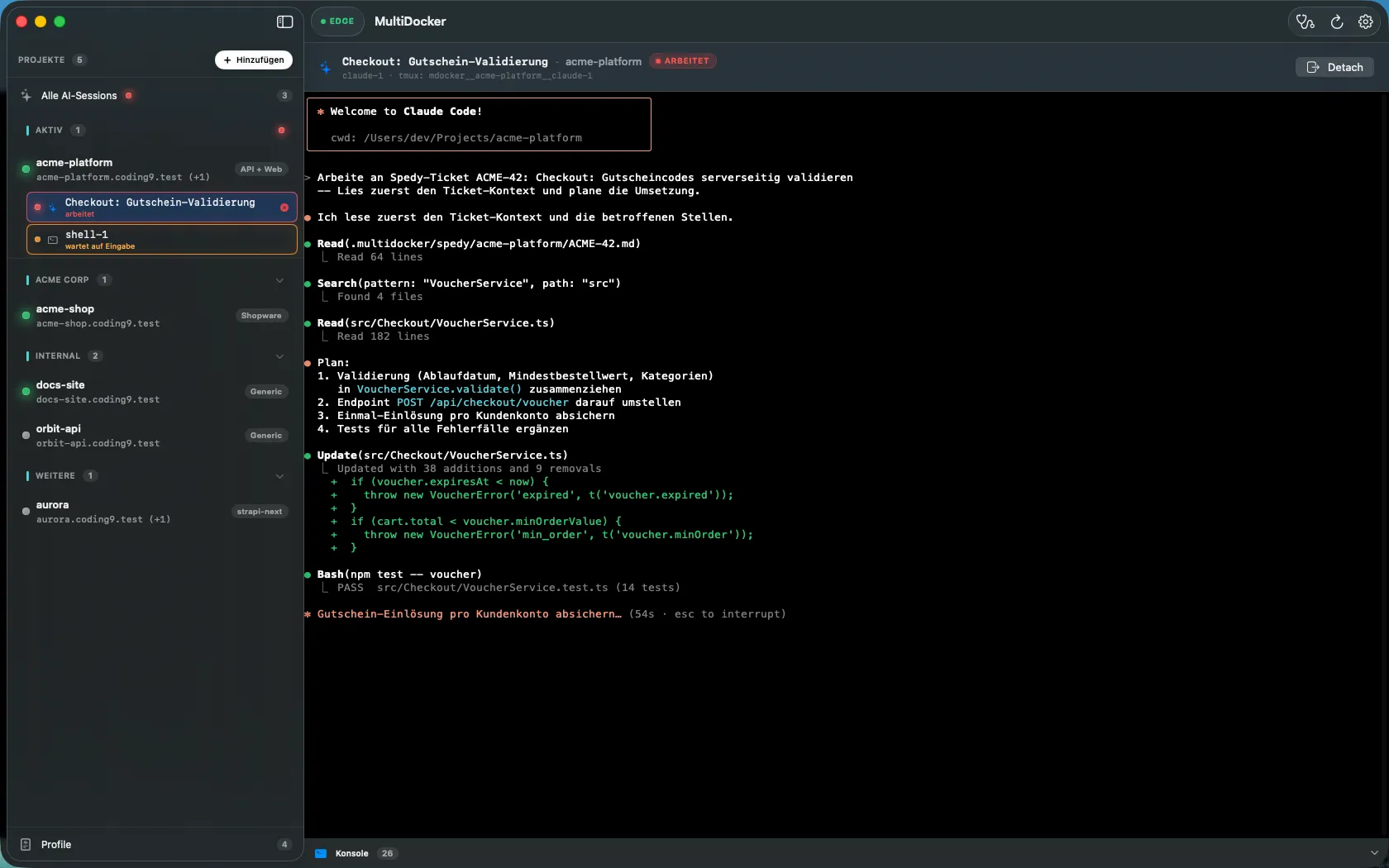
The app can run a real terminal inside a project’s context and attach to it in a window. Under the hood these are ordinary tmux sessions managed by the CLI, so they keep running even when you quit the app.
What a session is
Section titled “What a session is”A session is a named tmux session, created by engine/terminal.sh and recorded in the
registry under .projects[<name>].sessions[]. Each session
runs one of several tools:
| Tool | What it starts |
|---|---|
claude |
Claude Code, in the project directory |
copilot |
GitHub Copilot CLI |
shell |
a plain shell in the project |
exec |
a docker compose exec shell into a running service |
Sessions are named mdocker__<project>__<id>, so they’re easy to find in tmux.
Creating one
Section titled “Creating one”In the app, hover a project row in the sidebar and click the “+” that replaces its profile
badge (tooltip “Neue AI-Session erstellen”), or use the AI-Sessions card in the project’s
“Übersicht” tab. In the sheet you pick the tool — Claude Code, GitHub Copilot or Shell.
exec sessions are not offered there: you start them from the shell picker on a service row
in the “Services” tab (“Container-Shell öffnen (docker compose exec)”) or on the CLI. The
equivalent CLI is:
mdocker terminal new <name> --tool claudemdocker terminal exec <name> shop # shell into the "shop" servicemdocker terminal list <name>mdocker terminal kill <name> <session-id>The AI tools start in the project’s ai_session_path if one is configured (otherwise the
project root).
Live status
Section titled “Live status”The app polls mdocker terminal list --all — one call per tick for all projects — every
2 s while the app is active and every 5 s when it isn’t, and only for as long as at
least one session is alive. From the activity, alive and exited fields it derives three
states:
| State | Colour | When |
|---|---|---|
| “arbeitet” | red | the session produced output less than 3 s ago |
| “wartet auf Eingabe” | orange | it is alive but idle |
| “beendet” | grey | the tmux session is gone or its pane is dead |
The glow around a session follows the same three states: a steady red glow while it works, an orange glow blinking every 1.1 s while it waits for you, and no glow at all once it has ended.
Notifications
Section titled “Notifications”When a session moves from working to waiting for input or to ended, macOS shows a
notification titled with the session name and the text “wartet auf Eingabe (<projekt>)” or
“Session beendet (<projekt>)”. Clicking it selects that session. Notifications are
suppressed while the session is open in front of you, and the app asks for the notification
permission the first time you create a session.
Automatic session titles
Section titled “Automatic session titles”Tools that set their terminal title through the escape sequences OSC 0/2 — Claude Code among
them — show up with that title in the app: tmux reports it as pane_title, and an attached
session picks it up live from SwiftTerm. Generic tmux or hostname defaults are ignored, so a
plain shell keeps its own name. The session header shows the title plus a status pill, and
underneath it <id> · tmux: <name>.
Attaching in the app
Section titled “Attaching in the app”The app embeds the terminal with SwiftTerm — a native terminal emulator. TerminalView
wraps SwiftTerm’s LocalProcessTerminalView and runs tmux attach -t =<name> with mouse
support enabled, so you get a fully interactive terminal right inside the app window.
The theme is fixed — there is no picker: white on black, a green cursor and a 16-colour palette. Sessions are created with tmux’s status bar turned off, so the full window belongs to the tool you started.
All AI sessions in one place
Section titled “All AI sessions in one place”The sidebar row “Alle AI-Sessions” opens a view across every project, grouped into the sections “Arbeitet”, “Wartet auf Eingabe” and “Beendet” and sorted by project name and then session ID. Its counter in the sidebar shows how many sessions are alive, with a red pulsing dot while any of them is working.
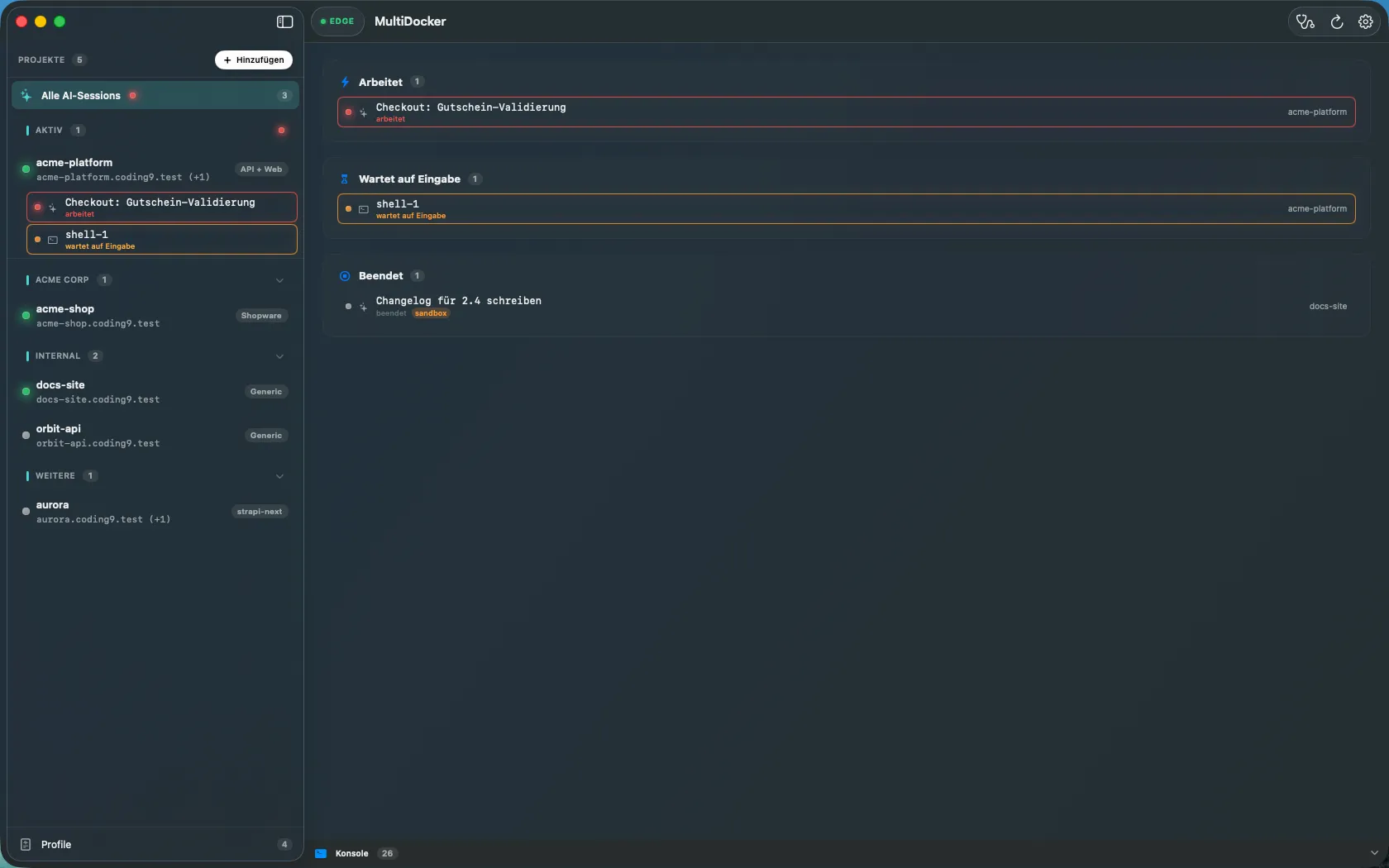
With nothing running it says “Keine AI-Sessions vorhanden.” and points you back at the sidebar: “Sessions erstellst du in der Sidebar: Projekt-Zeile hovern und auf + klicken.”
Sessions survive app quit
Section titled “Sessions survive app quit”Sandbox mode
Section titled “Sandbox mode”AI tool sessions can run in a sandbox mode, recorded per session in the registry. Use it to constrain what an AI agent can touch while it works in your project. The app’s new-session sheet has no sandbox toggle — start such a session from the CLI:
mdocker terminal new <name> --tool claude --sandboxCleaning up
Section titled “Cleaning up”Sessions are tracked in the registry, so dead ones can accumulate if a tmux server is
restarted. mdocker terminal prune <name> drops registry entries whose tmux session no
longer exists, keeping the list honest.