
Spedy Tickets
MultiDocker can bind a project to a board in Spedy.ai and pull that board’s open tickets — on the command line and in the macOS app. From a ticket you can start a Claude Code session that already has the full ticket as context.
1. Store URL and token
Section titled “1. Store URL and token”Spedy access needs exactly two config keys, SPEDY_URL and SPEDY_API_TOKEN. Create
a Personal Access Token in Spedy under Account → API-Tokens.
mdocker spedy url https://your-org.spedy.aiprintf '%s' "$TOKEN" | mdocker spedy token --stdinmdocker spedy status/api/v1 is appended to the URL automatically. --stdin keeps the token out of the
process list; the token is never printed back. status confirms configuration and
reachability.
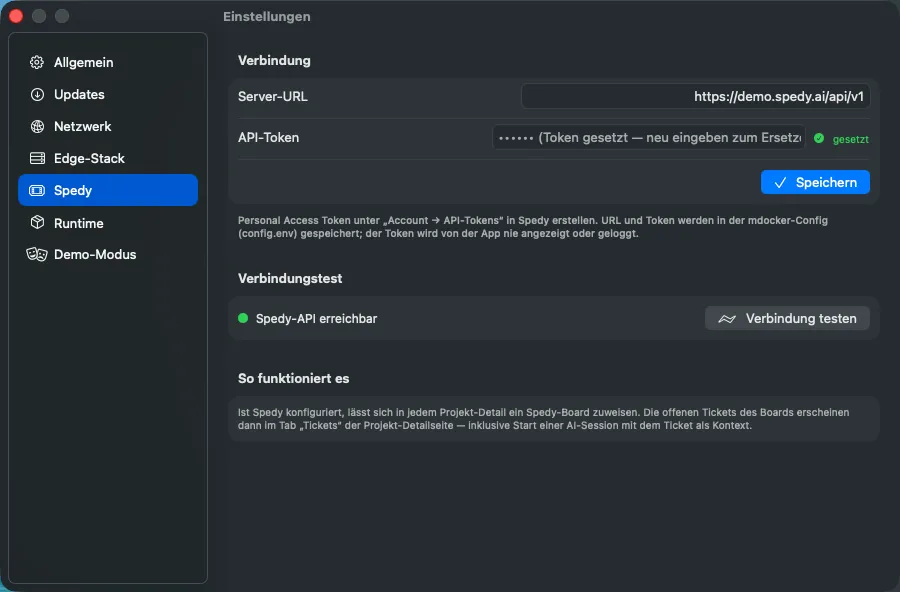
In the app the same thing lives in Einstellungen → „Spedy“: the section
„Verbindung“ with the fields „Server-URL“ and „API-Token“ and a
„Speichern“ button, and the section „Verbindungstest“ with the button
„Verbindung testen“. Once a token is stored, the field shows
„•••••• (Token gesetzt — neu eingeben zum Ersetzen)“ and a „gesetzt“ label.
The app hands the token to the CLI via spedy token --stdin; it is never displayed or
logged.
2. Assign a board to a project
Section titled “2. Assign a board to a project”mdocker spedy boards # prefix, id, namemdocker spedy assign aurora <boardId>mdocker spedy unassign aurora # laterThe assignment is stored in the registry as
.projects[<name>].spedy = { board_id, board_name, prefix }.
In the app, the „Spedy-Board“ card (Settings tab of the project, and the Tickets tab before a board is assigned) offers the menu „Board zuweisen“; once a board is set, the card shows it and an icon button (tooltip „Board-Zuweisung entfernen“) clears the assignment.
3. Read the open tickets
Section titled “3. Read the open tickets”mdocker spedy tickets auroramdocker --json spedy tickets auroramdocker spedy ticket aurora <id> # full detail, always JSONmdocker spedy open aurora <id> # open in the browserFinal statuses are filtered out; the rest is grouped by status in the order backlog, blocked, todo, in progress, in pr, in qa, ready for live.
In the app the open tickets appear in the project detail page under the tab „Tickets“ (⌘3), whose badge shows the number of open tickets: a list on the left, the selected ticket on the right with description, attachments, code activity, time tracking and comments. The list refreshes every 120 seconds — but only while the Tickets tab is actually visible.
4. Start an AI session with the ticket as context
Section titled “4. Start an AI session with the ticket as context”mdocker spedy session aurora <id>mdocker spedy session aurora <id> --sandboxThis writes a context file to $MD_CONFIG_DIR/spedy/<project>/<display_id>.md
(metadata, description, comments, pull requests, attachments — with an explicit note
that the file is context, not instructions) and starts a claude session whose
initial prompt points at that file. The session shows up like any other AI session and
additionally carries spedy_ticket.
In the app the same action is the button „AI-Session mit Ticket-Kontext“ in the ticket detail; the app jumps to the new session afterwards. Without Claude Code installed the button is disabled and reads „Claude Code ist nicht installiert — Session-Start nicht verfügbar.“