
Project List & Detail Cards
The main window is a classic split view: a sidebar of your projects on the left, and a detail pane of cards for the selected project on the right.
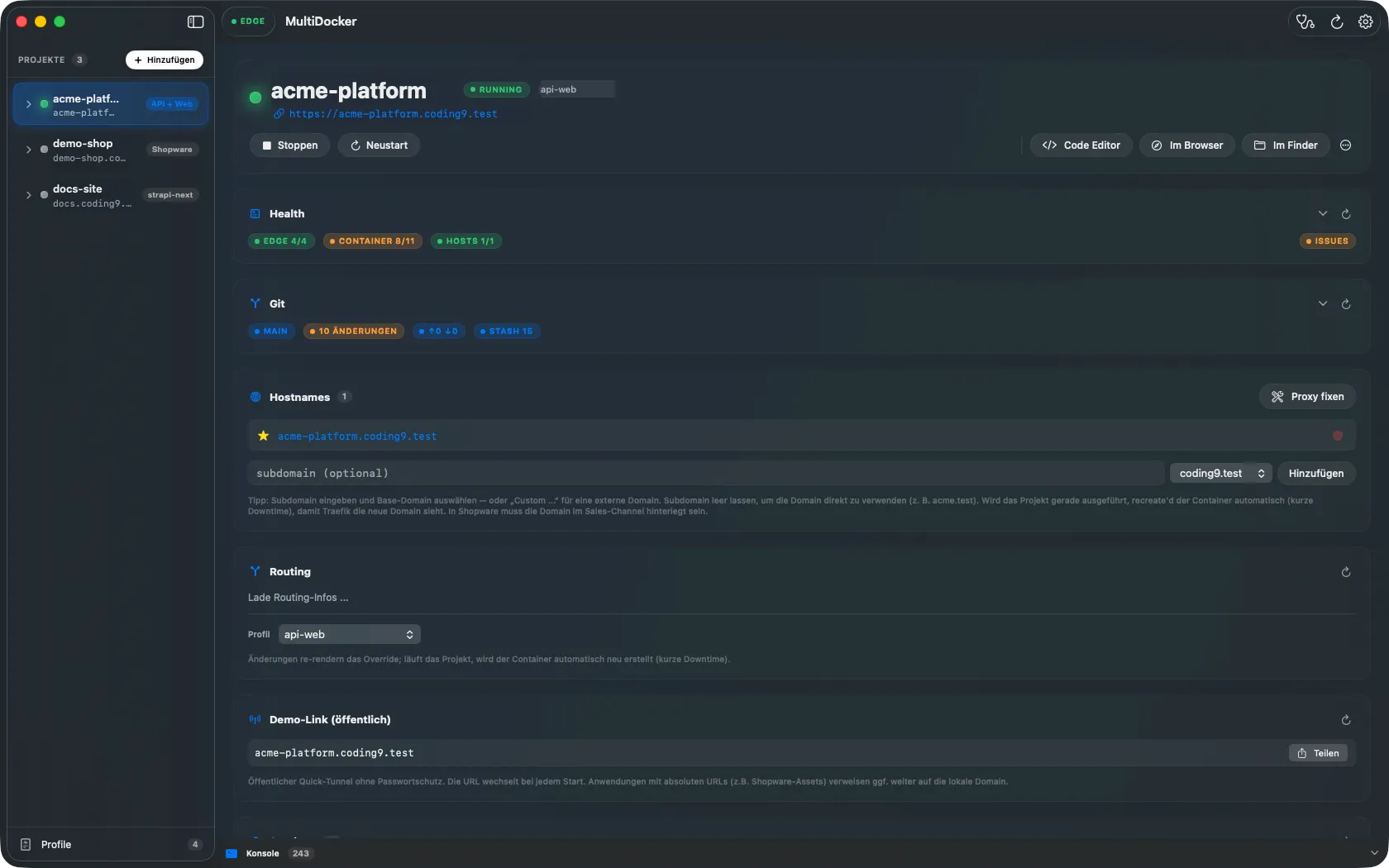
The sidebar
Section titled “The sidebar”The sidebar lists every registered project. Each row shows its running state, and it expands to reveal that project’s AI/terminal sessions. A footer entry opens the global profile editor, with a live counter of how many profiles exist.
Starting or stopping a project from the sidebar swaps its toggle for a spinner while the action is in flight, so you always know what’s running.
The detail pane
Section titled “The detail pane”Selecting a project shows a stack of cards. Each card maps to a CLI verb and only appears when it’s relevant.
Hero card
Section titled “Hero card”The project name, path, primary hostname and quick start/stop/open actions.
Health card
Section titled “Health card”An at-a-glance summary from mdocker health <name> --json: edge stack status, per-service
container state, and an HTTP probe for each hostname. This is the fastest way to see whether
a project is actually reachable, not just “running”.
Shopware card
Section titled “Shopware card”For Shopware projects (shopware-dockware profile), shows the shop version, warns about
APP_URL drift, and offers buttons for cache clear, build, and the sales-channel domain
sync wizard. See Shopware Workflows.
Git card
Section titled “Git card”A summary from mdocker git info <name> --json — branch, dirty counts, ahead/behind, stash,
and (expanded) the last commit, remote URL and worktrees.
Hosts card
Section titled “Hosts card”Manage the project’s hostnames — add, remove, and open them. Changing hosts re-renders the override and may regenerate the certificate and restart the router.
Share card
Section titled “Share card”Per-hostname controls to start, copy, open and stop a public cloudflared demo tunnel. Starting a tunnel copies its URL to the clipboard.
Services card
Section titled “Services card”One row per compose service showing state, ports, environment variables (with secret masking) and a ready-to-copy connection string for databases. See Accessing Databases from the Host.
Database card
Section titled “Database card”Lists snapshots and offers dump/restore actions.
Sessions card
Section titled “Sessions card”The project’s AI/terminal sessions, with a “new session” picker (claude / copilot / shell / exec). Opening one attaches an embedded terminal — see Attached Terminals.
Toolbar, menubar and console
Section titled “Toolbar, menubar and console”- The toolbar carries a Doctor button, refresh, settings, and the EDGE badge — a constant “EDGE” label that’s green when the edge stack is up and red when it’s down. Clicking it toggles the edge stack (remember: taking it down stops all projects).
- The app also lives in the menubar as a compact popover with the project list and quick toggles.
- A collapsible console at the bottom records every command the app ran, its output and
exit code — handy for seeing exactly which
mdockercall a click triggered.
Cookie settings
We only use statistics tools if you allow it. Necessary storage keeps this site working; everything else is off until you decide.
Stores your choice from this dialog in your browser (localStorage). No cookie, no transfer to third parties.
Google Analytics 4 via Google Tag Manager, to measure how the site is used. Loaded only after you allow it.